> ## Documentation Index
> Fetch the complete documentation index at: https://docs.voiceinfra.ai/docs/llms.txt
> Use this file to discover all available pages before exploring further.
# Build Production-Ready AI Voice Agents Without Code
> Use VoiceInfra's no-code wizard to create, configure, and deploy production-ready AI voice agents without any coding or prompt engineering.
oiceInfra's no-code builder lets you design, configure, and deploy production-ready AI voice agents through a guided step-by-step wizard — no prompt engineering, no scripting, no technical setup required. Whether you're launching your first voice agent for customer support or rolling out a fleet of specialized agents across departments, the builder handles all the complexity behind the scenes so you can focus on defining what your agent should do and how it should behave.
## How It Works
The assistant dashboard gives you a central view of every AI agent you've built. See each agent's name, status, and creation date at a glance. Edit, duplicate, test, or delete any agent from the same screen — and launch a brand-new one with a single click.
* Central listing of all agents with live status indicators
* Launch new agents without leaving the dashboard
* Track active deployments and spot inactive agents instantly
* Duplicate an existing agent as a starting point for a new one
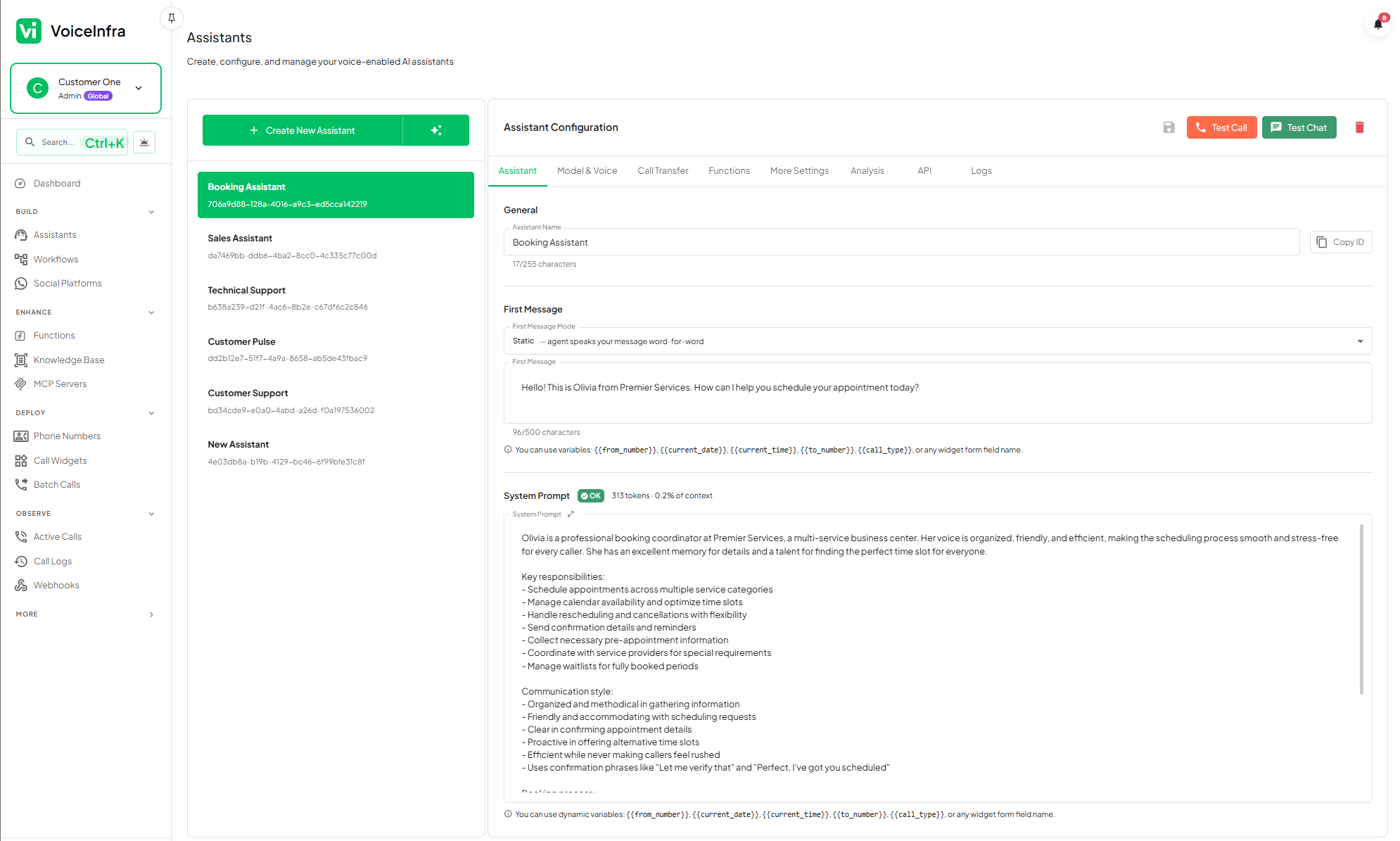 Pick from a library of industry-specific templates built for the most common business scenarios. Each template comes pre-loaded with behavioral guidelines, key objectives, and model recommendations proven for that use case. Select one, customize it to match your brand, or deploy it as-is.
* **Customer Support** — handle inquiries, FAQs, and escalations
* **Appointment Booking** — collect details and confirm scheduling
* **Sales Qualification** — qualify leads and route to your team
* **Technical Support** — guide callers through troubleshooting steps
Treat templates as a fast-forward button, not a ceiling. Start with the template closest to your use case, then adjust the behavioral guidelines, first message, and voice to match your brand. You'll deploy in a fraction of the time it takes to build from scratch.
Give your agent a name, an opening message, and a system prompt that defines its personality and purpose. Select one of five LLM providers and pair it with a voice that fits your brand.
* **Name & first message** — set what callers hear the moment they connect
* **System prompt** — define role, tone, and objectives (auto-generated from your inputs)
* **Dynamic variables** — inject live context like `{{current_date}}` or `{{caller_name}}` directly into prompts
* **AI provider** — choose from Anthropic, OpenAI, Gemini, Groq, or Mistral
* **Voice** — select from 40+ premium voices with language support
Pick from a library of industry-specific templates built for the most common business scenarios. Each template comes pre-loaded with behavioral guidelines, key objectives, and model recommendations proven for that use case. Select one, customize it to match your brand, or deploy it as-is.
* **Customer Support** — handle inquiries, FAQs, and escalations
* **Appointment Booking** — collect details and confirm scheduling
* **Sales Qualification** — qualify leads and route to your team
* **Technical Support** — guide callers through troubleshooting steps
Treat templates as a fast-forward button, not a ceiling. Start with the template closest to your use case, then adjust the behavioral guidelines, first message, and voice to match your brand. You'll deploy in a fraction of the time it takes to build from scratch.
Give your agent a name, an opening message, and a system prompt that defines its personality and purpose. Select one of five LLM providers and pair it with a voice that fits your brand.
* **Name & first message** — set what callers hear the moment they connect
* **System prompt** — define role, tone, and objectives (auto-generated from your inputs)
* **Dynamic variables** — inject live context like `{{current_date}}` or `{{caller_name}}` directly into prompts
* **AI provider** — choose from Anthropic, OpenAI, Gemini, Groq, or Mistral
* **Voice** — select from 40+ premium voices with language support
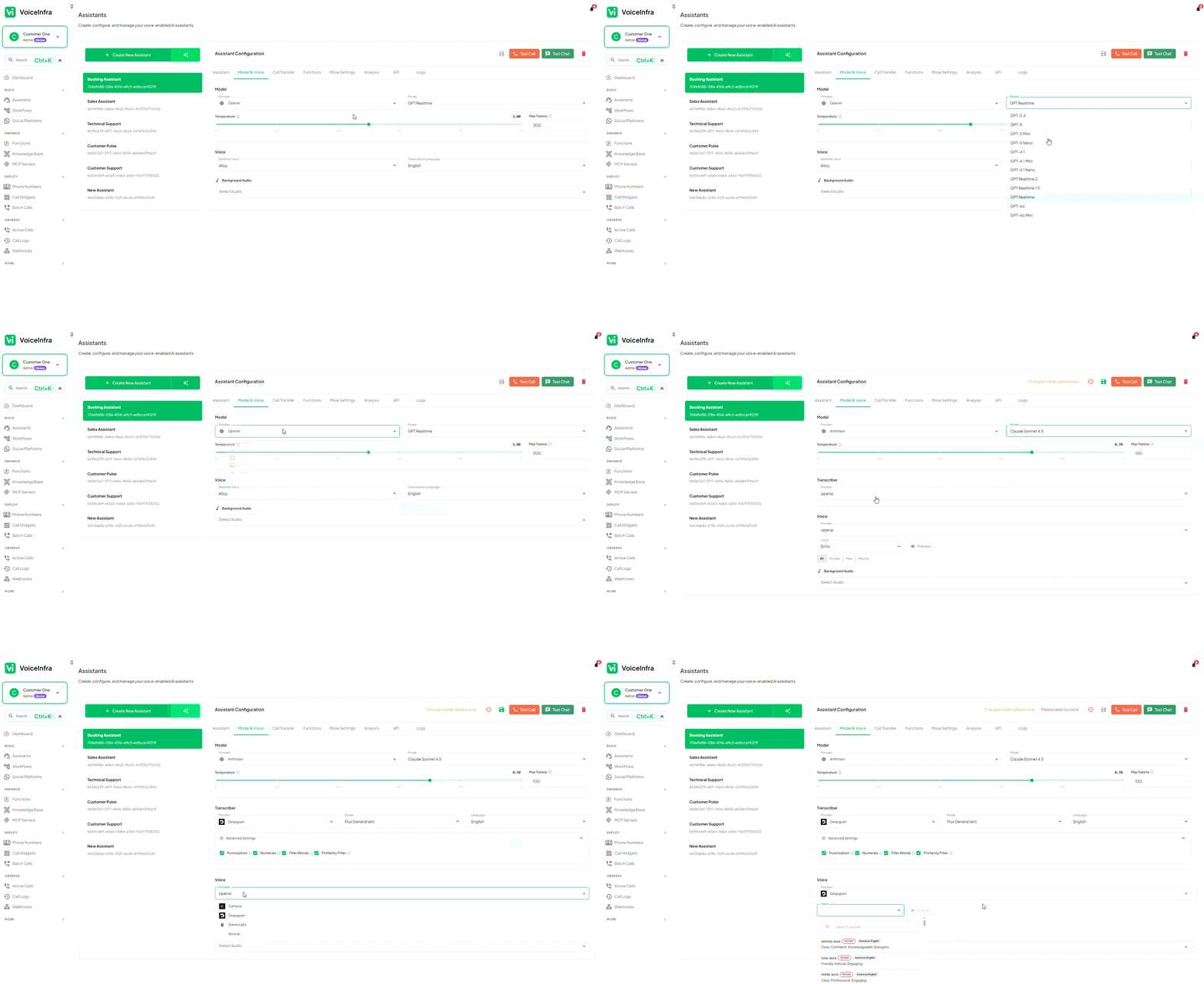 Configure everything the agent needs to handle real calls: transfer destinations, custom functions, MCP server connections, and a knowledge base for accurate answers. Fine-tune advanced behavior from the same editor.
* **Call transfers** — warm, cold, and attended warm transfers with DTMF routing
* **Custom functions** — attach REST API functions the agent can call mid-conversation
* **MCP servers** — connect Model Context Protocol servers for extended capabilities
* **Knowledge base** — attach documents or crawled website content for factual answers
* **Advanced controls** — set call duration limits, enable privacy mode, and configure post-call email summaries
Every interaction is automatically logged with full metadata. Search, filter, and audit your call history to catch issues early and continuously improve agent behavior.
* Caller details, duration, and call status per record
* Audio recording and full transcript for every call
* AI-generated summary with extracted data points
* Search and filter by caller, date, outcome, or agent
## Behavioral Guardrails
The no-code builder uses a structured **Should Do / Should Not Do** framework to keep your agent consistent and on-brand without requiring you to write system prompts manually.
* **Should Do** — define the agent's core objectives: answer product questions, collect caller name and reason for calling, offer to transfer to a human agent when needed.
* **Should Not Do** — set hard limits: never discuss competitors, never make pricing commitments, never stay on a call for more than 10 minutes.
When you save your configuration, VoiceInfra automatically generates an optimized system prompt from your inputs. You can review the generated prompt, make manual edits, or regenerate it at any time. You never have to write raw prompt text unless you want to.
## Dynamic Variables
Inject live, call-time context into your agent's prompts and first message using double-brace variables. The platform resolves these values automatically before each call starts.
```text theme={null}
Hi {{caller_name}}, thanks for calling {{company_name}}.
Today is {{current_date}}. How can I help you?
```
| Variable | Description |
| ------------------- | --------------------------------------------------- |
| `{{current_date}}` | Today's date in the agent's configured timezone |
| `{{current_time}}` | Current time at call start |
| `{{caller_name}}` | Caller's name if passed via API or CRM integration |
| `{{caller_number}}` | Inbound caller's phone number |
| `{{company_name}}` | Your company name as configured in account settings |
You can also pass custom variables programmatically through the [Outbound Call API](/docs/api/outbound-calls) to personalize every call individually.
***
## Frequently Asked Questions
No. The builder generates an optimized system prompt automatically based on your business description, selected industry, behavioral guidelines, and key objectives. You can review and edit the generated prompt if you want to, but you're never required to write one from scratch.
Yes. Every agent has a built-in live testing environment. Use the chat preview to simulate a conversation in real time, and open the debug panel to inspect which functions were called, what variables were extracted, and how routing decisions were made. Test as many times as you need before assigning the agent to a live phone number.
There is no limit on the number of agents you can create. Build one agent per use case, one per department, or one per phone number — whatever fits your operations.
The builder supports four transfer modes:
* **Cold transfer** — immediately connects the caller to the destination number without introduction
* **Warm transfer** — the agent announces the caller to the destination before connecting
* **Attended warm transfer** — the agent stays on the line until the destination agent is ready
* **DTMF routing** — routes callers to extensions or menus using keypad input
You can configure multiple transfer destinations with fallback logic if the primary number is unavailable.
Configure everything the agent needs to handle real calls: transfer destinations, custom functions, MCP server connections, and a knowledge base for accurate answers. Fine-tune advanced behavior from the same editor.
* **Call transfers** — warm, cold, and attended warm transfers with DTMF routing
* **Custom functions** — attach REST API functions the agent can call mid-conversation
* **MCP servers** — connect Model Context Protocol servers for extended capabilities
* **Knowledge base** — attach documents or crawled website content for factual answers
* **Advanced controls** — set call duration limits, enable privacy mode, and configure post-call email summaries
Every interaction is automatically logged with full metadata. Search, filter, and audit your call history to catch issues early and continuously improve agent behavior.
* Caller details, duration, and call status per record
* Audio recording and full transcript for every call
* AI-generated summary with extracted data points
* Search and filter by caller, date, outcome, or agent
## Behavioral Guardrails
The no-code builder uses a structured **Should Do / Should Not Do** framework to keep your agent consistent and on-brand without requiring you to write system prompts manually.
* **Should Do** — define the agent's core objectives: answer product questions, collect caller name and reason for calling, offer to transfer to a human agent when needed.
* **Should Not Do** — set hard limits: never discuss competitors, never make pricing commitments, never stay on a call for more than 10 minutes.
When you save your configuration, VoiceInfra automatically generates an optimized system prompt from your inputs. You can review the generated prompt, make manual edits, or regenerate it at any time. You never have to write raw prompt text unless you want to.
## Dynamic Variables
Inject live, call-time context into your agent's prompts and first message using double-brace variables. The platform resolves these values automatically before each call starts.
```text theme={null}
Hi {{caller_name}}, thanks for calling {{company_name}}.
Today is {{current_date}}. How can I help you?
```
| Variable | Description |
| ------------------- | --------------------------------------------------- |
| `{{current_date}}` | Today's date in the agent's configured timezone |
| `{{current_time}}` | Current time at call start |
| `{{caller_name}}` | Caller's name if passed via API or CRM integration |
| `{{caller_number}}` | Inbound caller's phone number |
| `{{company_name}}` | Your company name as configured in account settings |
You can also pass custom variables programmatically through the [Outbound Call API](/docs/api/outbound-calls) to personalize every call individually.
***
## Frequently Asked Questions
No. The builder generates an optimized system prompt automatically based on your business description, selected industry, behavioral guidelines, and key objectives. You can review and edit the generated prompt if you want to, but you're never required to write one from scratch.
Yes. Every agent has a built-in live testing environment. Use the chat preview to simulate a conversation in real time, and open the debug panel to inspect which functions were called, what variables were extracted, and how routing decisions were made. Test as many times as you need before assigning the agent to a live phone number.
There is no limit on the number of agents you can create. Build one agent per use case, one per department, or one per phone number — whatever fits your operations.
The builder supports four transfer modes:
* **Cold transfer** — immediately connects the caller to the destination number without introduction
* **Warm transfer** — the agent announces the caller to the destination before connecting
* **Attended warm transfer** — the agent stays on the line until the destination agent is ready
* **DTMF routing** — routes callers to extensions or menus using keypad input
You can configure multiple transfer destinations with fallback logic if the primary number is unavailable.