> ## Documentation Index
> Fetch the complete documentation index at: https://docs.voiceinfra.ai/docs/llms.txt
> Use this file to discover all available pages before exploring further.
# Register AI Agents as SIP Extensions on Any PBX System
> Connect VoiceInfra AI agents to 3CX, Yeastar, FreePBX, Asterisk, Avaya, or any SIP-capable PBX by registering them as standard SIP extensions.
VoiceInfra AI agents register on your existing PBX as standard SIP extensions — the same way a desk phone or softphone does. There is no hardware to swap out, no carrier to change, and no downtime. Your phone system keeps running exactly as it does today, and your AI agent simply occupies an extension that you assign, it is magical!
## Compatible PBX Systems
VoiceInfra works with any PBX that supports standard SIP registration. The table below lists commonly deployed systems, but if your PBX speaks SIP it will work.
| PBX System | Notes |
| ------------------------------- | ------------------------------------ |
| 3CX | All editions (SMB, Pro, Enterprise) |
| Yeastar | P-Series, S-Series, and Cloud PBX |
| FreePBX / Asterisk / FreeSWITCH | Any version with SIP/PJSIP support |
| Vicidial | Requires SIP extension permissions |
| Issabel | Fully supported |
| Avaya | Aura and IP Office with SIP trunking |
| Cisco | CUCM and Cisco UCM via SIP |
| Mitel | MiVoice and MiCloud |
| Any SIP-capable PBX or SBC | If it supports RFC 3261, it works |
**Whitelist IP** `51.81.221.91 `**before registering.** Without this step, SIP registration will fail. Add this IP to your PBX firewall or allowed IP list first — then proceed with the steps below. In case of any issues, you can always reach out to our friendly support for prompt response.
## Set Up a PBX Extension
In your PBX admin console, create a standard SIP extension exactly as you would for a new desk phone or softphone. Note the extension number, SIP username, realm/domain, and SIP password — you will need them in VoiceInfra.
Add IP address `51.81.221.91` to your PBX firewall's allowed IP list (sometimes called an IP ACL or trusted host list). This allows SIP traffic to flow between your PBX and VoiceInfra servers. **This step is required.** Without it, the extension will not register. In case of any issues, please do reach out to our support team via the portal.
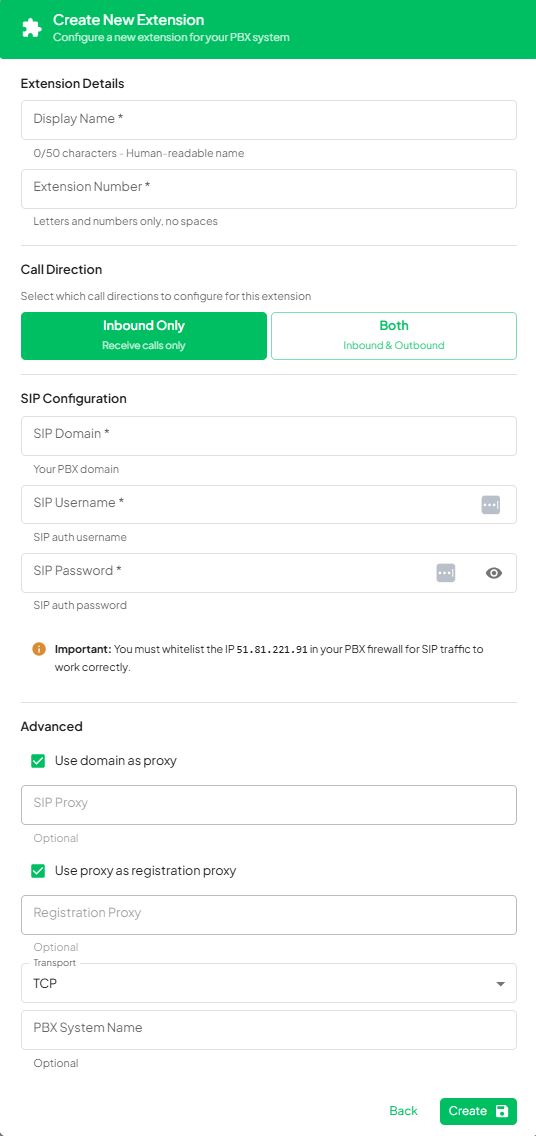
Open the VoiceInfra dashboard and navigate to **Deploy → Phone Numbers → PBX Extensions → Add Extension**. Fill in the following fields:
* **Display Name** — a human-readable label (e.g., "Reception AI")
* **Extension Number** — the extension number from your PBX
* **PBX Domain** — your PBX's SIP domain or IP address (registration domain)
* **SIP Username** — the SIP username from your PBX extension
* **SIP Password** — the SIP authentication password
* **Call Direction** — choose Inbound, Outbound, or Both (defines call handling capability of the agent)
Update the SIP Proxy address under the **Advanced Settings** section if your PBX environment requires custom routing. You can set:
* **SIP Proxy** — for environments that route SIP through an intermediate proxy
* **Registration Proxy** — if your PBX requires a separate registration endpoint
* **Transport Protocol** — choose TCP, UDP, or TLS to match your PBX configuration
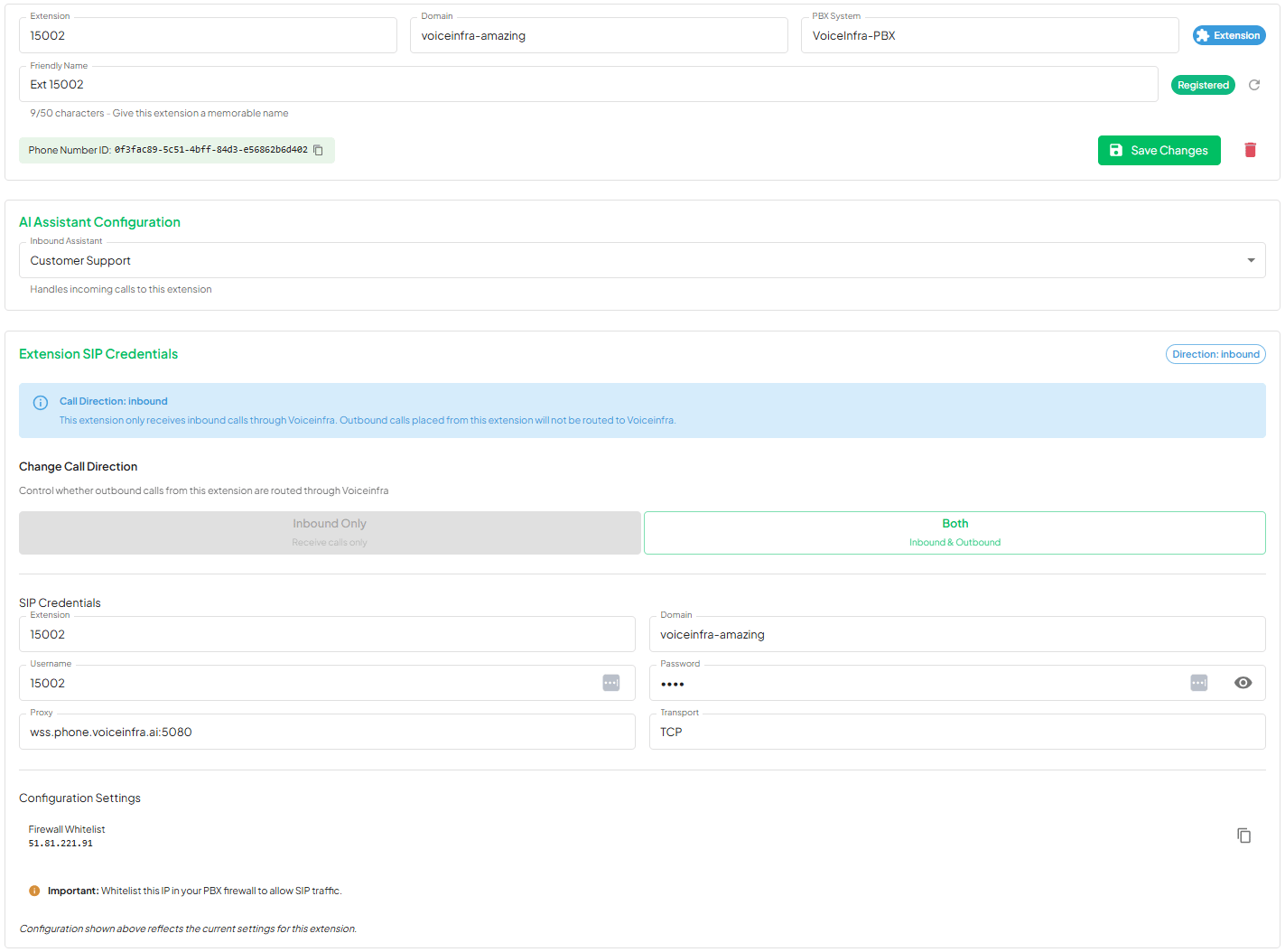
 After the extension registers successfully, select which AI agent handles calls on this extension, click Save Changes. The agent is now live — inbound calls ring the AI, and the AI can place outbound calls from the extension.
 ## Call Directions
Choose how each extension handles calls when you set it up.
| Direction | Behavior |
| ------------ | ------------------------------------------------------------------------ |
| **Inbound** | The AI agent answers calls that arrive on this extension |
| **Outbound** | The AI agent places calls using this extension as the originating number |
| **Both** | The AI agent handles both incoming and outgoing calls |
You can change the call direction at any time from the extension settings page. Changes apply immediately without re-registering.
## Configuration Reference
| Field | Description |
| ------------ | ----------------------------------------------------------------------------------------------------------------------------------------- |
| Display Name | Human-readable label for this extension in VoiceInfra |
| PBX Domain | Your PBX's SIP domain or IP address (e.g., `pbx.example.com` or `192.168.1.10`). Technically, this is the realm where the user registers. |
| SIP Username | The extension number or username from your PBX (digits only) |
| SIP Password | SIP authentication password from your PBX extension |
| Transport | TCP, UDP, or TLS — match this to your PBX's SIP transport setting ( for TLS/SRTP, contact VoiceInfra AI support) |
## Frequently Asked Questions
No. Adding a SIP extension to a PBX is a non-destructive operation. Your existing extensions, call routing, and ring groups are completely unaffected. There is zero downtime.
Unlimited. You can register as many extensions as your PBX supports — one per AI agent, multiple agents per PBX, or agents across multiple PBX systems.
Yes. Set the call direction to **Both** when configuring the extension. The same AI agent will answer incoming calls and place outgoing calls using that extension number.
Yes. VoiceInfra encrypts all SIP credentials at rest. Credentials are never exposed in logs, API responses, or the dashboard UI after you save them.
Check three things: (1) confirm IP `51.81.221.91` is whitelisted in your PBX firewall, (2) verify your PBX domain, SIP username, and password are correct, and (3) ensure the transport protocol (TCP/UDP/TLS) matches your PBX configuration. Reach out to VoiceInfra AI support via email or via the portal.
## Call Directions
Choose how each extension handles calls when you set it up.
| Direction | Behavior |
| ------------ | ------------------------------------------------------------------------ |
| **Inbound** | The AI agent answers calls that arrive on this extension |
| **Outbound** | The AI agent places calls using this extension as the originating number |
| **Both** | The AI agent handles both incoming and outgoing calls |
You can change the call direction at any time from the extension settings page. Changes apply immediately without re-registering.
## Configuration Reference
| Field | Description |
| ------------ | ----------------------------------------------------------------------------------------------------------------------------------------- |
| Display Name | Human-readable label for this extension in VoiceInfra |
| PBX Domain | Your PBX's SIP domain or IP address (e.g., `pbx.example.com` or `192.168.1.10`). Technically, this is the realm where the user registers. |
| SIP Username | The extension number or username from your PBX (digits only) |
| SIP Password | SIP authentication password from your PBX extension |
| Transport | TCP, UDP, or TLS — match this to your PBX's SIP transport setting ( for TLS/SRTP, contact VoiceInfra AI support) |
## Frequently Asked Questions
No. Adding a SIP extension to a PBX is a non-destructive operation. Your existing extensions, call routing, and ring groups are completely unaffected. There is zero downtime.
Unlimited. You can register as many extensions as your PBX supports — one per AI agent, multiple agents per PBX, or agents across multiple PBX systems.
Yes. Set the call direction to **Both** when configuring the extension. The same AI agent will answer incoming calls and place outgoing calls using that extension number.
Yes. VoiceInfra encrypts all SIP credentials at rest. Credentials are never exposed in logs, API responses, or the dashboard UI after you save them.
Check three things: (1) confirm IP `51.81.221.91` is whitelisted in your PBX firewall, (2) verify your PBX domain, SIP username, and password are correct, and (3) ensure the transport protocol (TCP/UDP/TLS) matches your PBX configuration. Reach out to VoiceInfra AI support via email or via the portal.