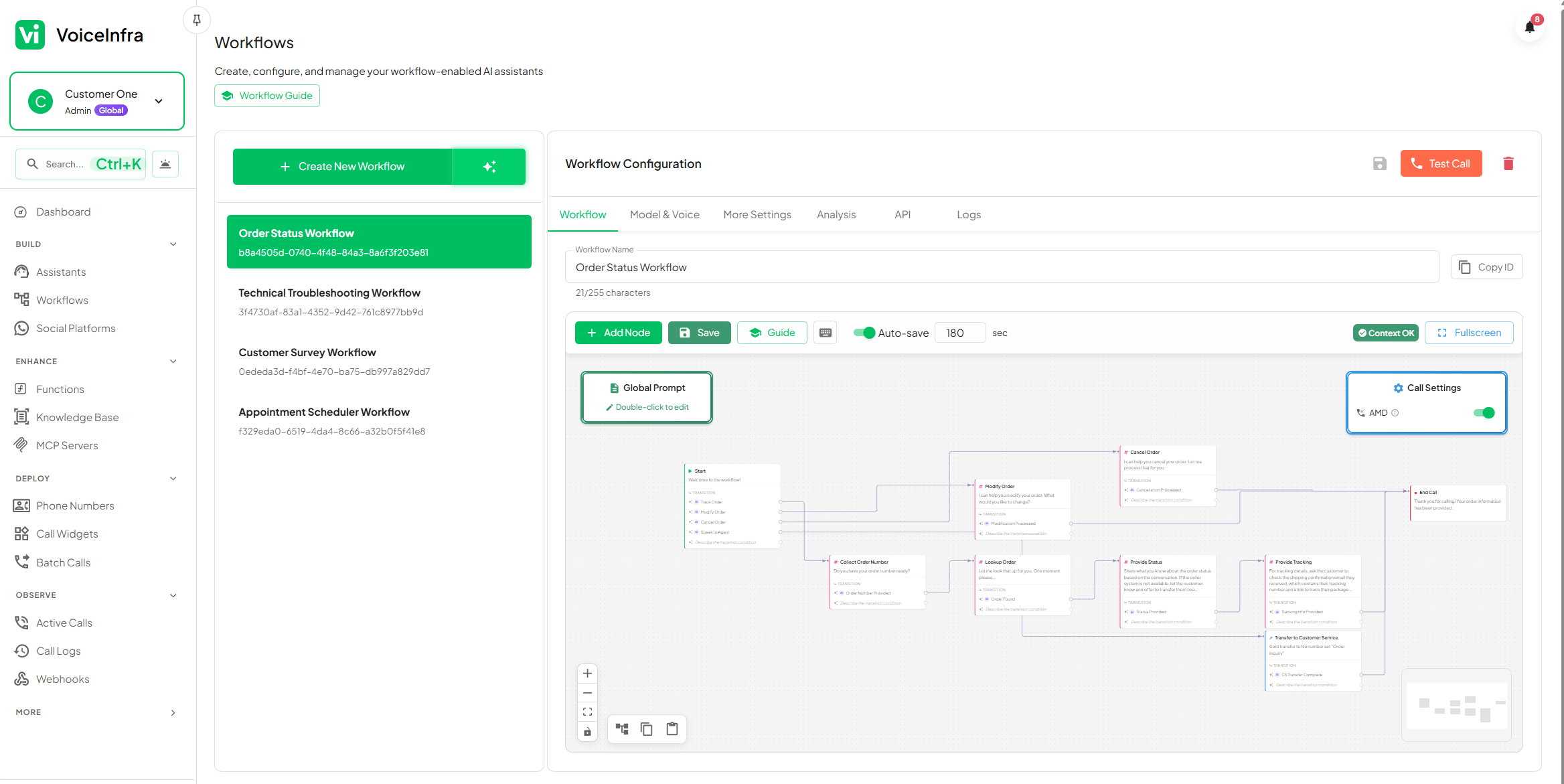
Node Types
Every workflow is composed of six node types. Each node handles a specific function, and you connect them with edges to define the conversation path.Routing Types
Nodes connect through edges, and each edge carries a transition condition that determines when the workflow moves to the next node.- AI Transitions — write the condition in plain language: “When the caller confirms their appointment” or “If the caller asks about pricing.” The AI evaluates the conversation in real time and follows the matching path.
- Equation Transitions — define variable-based logic:
caller_intent == "cancel"oraccount_balance < 0. These run as deterministic checks against variables extracted during the conversation. - Combined — apply both types on the same node. AI handles the nuanced language understanding; equations handle the hard rules. The first matching condition wins.
Build a Workflow
1
Create or Pick a Template
Start from a blank canvas or choose from 12+ pre-built workflow templates. Templates cover the most common scenarios and include pre-configured nodes, routing logic, and sample prompts ready to customize.
- Customer support escalation
- Lead qualification and routing
- Appointment booking and confirmation
- Technical troubleshooting triage
- After-hours call handling
- And more
2
Design on the Canvas
Drag nodes from the panel onto the canvas and connect them with edges. Click any node to open its configuration panel on the right — set the prompt, attach tools, define transition conditions, and configure extraction fields.
- Auto-layout — rearrange messy flows with one click
- Zoom and pan — navigate large workflows without losing context
- Minimap — see the full workflow structure at a glance
- Fullscreen mode — maximize your editing space for complex flows
- Validation — the builder flags broken edges and missing configurations before you can save
3
Configure Model, Voice & Settings
Open the workflow settings panel to select the AI provider and voice for this workflow, then tune the advanced controls that apply across all nodes.
- AI provider — Anthropic, OpenAI, Gemini, Groq, or Mistral
- Voice — select from 40+ premium voices; per-node voice overrides are also supported
- Interruption handling — decide whether the agent stops speaking when the caller talks
- Call limits — set maximum call duration
- Timezone — used for date/time variable resolution
- Post-call emails — send AI-generated call summaries to a configured address
4
Test With the Debug Panel
Trigger a test call directly from the builder. The debug panel shows you exactly what happens at each step in real time.
- Which node is currently active
- Variables extracted from caller responses
- Tool execution requests and API responses
- Transition conditions evaluated and which path was taken
- Errors or fallback triggers
5
Deploy
Save the workflow and assign it to one or more agents. Changes apply to new calls immediately — no downtime, no redeployment process. Calls that are already in progress continue on the previous version of the workflow until they end naturally.
AI Builder: If you’d rather describe your workflow in plain English than build it node by node, use the AI Builder. Type a description of what the workflow should do — for example, “Qualify inbound leads by asking for company size, budget, and timeline, then transfer to sales if all three criteria are met” — and VoiceInfra auto-generates the full node structure, routing conditions, and prompts for you. You can refine the result on the canvas afterward.
Frequently Asked Questions
Can I use external APIs inside a workflow?
Can I use external APIs inside a workflow?
Yes. Add a Tool node at any point in your workflow and configure it with your API endpoint, HTTP method, authentication headers, and request body. The agent calls the API in real time during the conversation and can use the response to decide what to say next or which path to follow. You can add custom headers for API key authentication and reference extracted caller variables in the request body.
How do I handle unexpected caller input?
How do I handle unexpected caller input?
If a caller goes off-script — asks an unexpected question, gives an unusual answer, or changes the subject — the AI engages naturally, answers if it can, and then guides the conversation back to the intended path. The workflow’s overall structure remains intact even when individual turns are unpredictable.
Are changes live immediately?
Are changes live immediately?
Yes for new calls. The moment you save a workflow, all new calls routed to agents using that workflow run the updated version. Calls already in progress at the time of the save continue on the previous version and complete normally. There is no downtime and no need to reassign agents after an update.