Compatible PBX Systems
VoiceInfra works with any PBX that supports standard SIP registration. The table below lists commonly deployed systems, but if your PBX speaks SIP it will work.Vendor guides
This page covers the general procedure, which works on any SIP-capable system. These guides walk through a specific system’s own menus:3CX
Register as a 3CX user extension — credentials, transport and whitelisting.
Dinstar Gateway
DAG, MTG, UC and C60 series — trunk, codecs and routing.
Yeastar
Coming soon. The general procedure below applies in the meantime.
Set Up a PBX Extension
1
Create a new extension on your PBX
In your PBX admin console, create a standard SIP extension exactly as you would for a new desk phone or softphone. Note the extension number, SIP username, realm/domain, and SIP password — you will need them in VoiceInfra.
2
Whitelist the VoiceInfra IP
Add the IP shown in your portal — Phone Numbers → your number → Connection details — to your PBX firewall’s allowed IP list (sometimes called an IP ACL or trusted host list). This allows SIP traffic to flow between your PBX and VoiceInfra servers. This step is required. Without it, the extension will not register. In case of any issues, please do reach out to our support team via the portal.
3
Register the extension in VoiceInfra
Open the VoiceInfra dashboard and navigate to Deploy → Phone Numbers → PBX Extensions → Add Extension. Fill in the following fields:
- Display Name — a human-readable label (e.g., “Reception AI”)
- Extension Number — the extension number from your PBX
- PBX Domain — your PBX’s SIP domain or IP address (registration domain)
- SIP Username — the SIP username from your PBX extension
- SIP Password — the SIP authentication password
- Call Direction — choose Inbound, Outbound, or Both (defines call handling capability of the agent)
4
Configure advanced SIP settings (optional)
Update the SIP Proxy address under the Advanced Settings section if your PBX environment requires custom routing. You can set: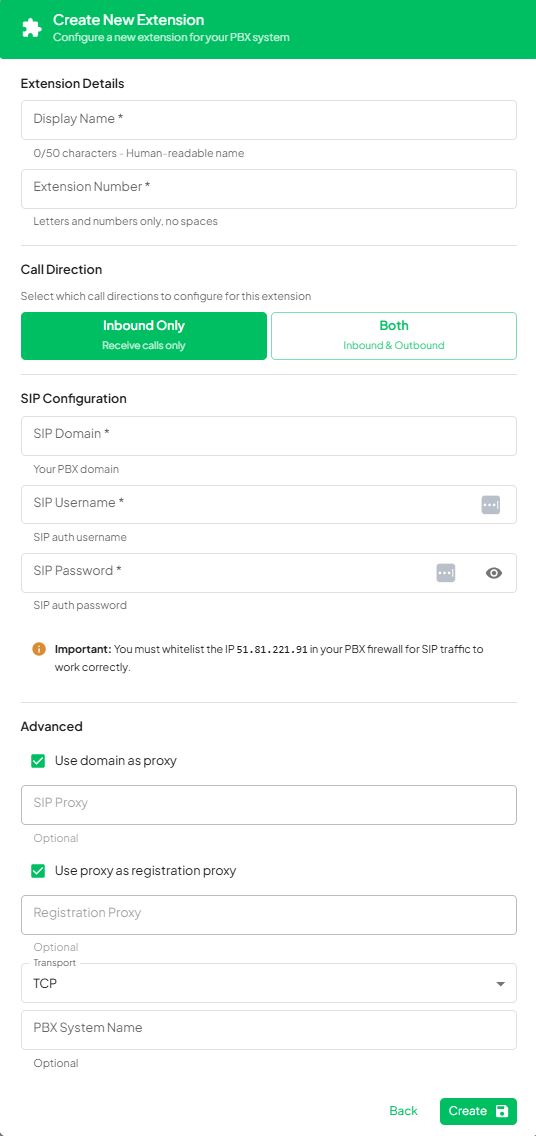
- SIP Proxy — for environments that route SIP through an intermediate proxy
- Registration Proxy — if your PBX requires a separate registration endpoint
- Transport Protocol — choose TCP, UDP, or TLS to match your PBX configuration
5
Assign to an agent
After the extension registers successfully, select which AI agent handles calls on this extension, click Save Changes. The agent is now live — inbound calls ring the AI, and the AI can place outbound calls from the extension.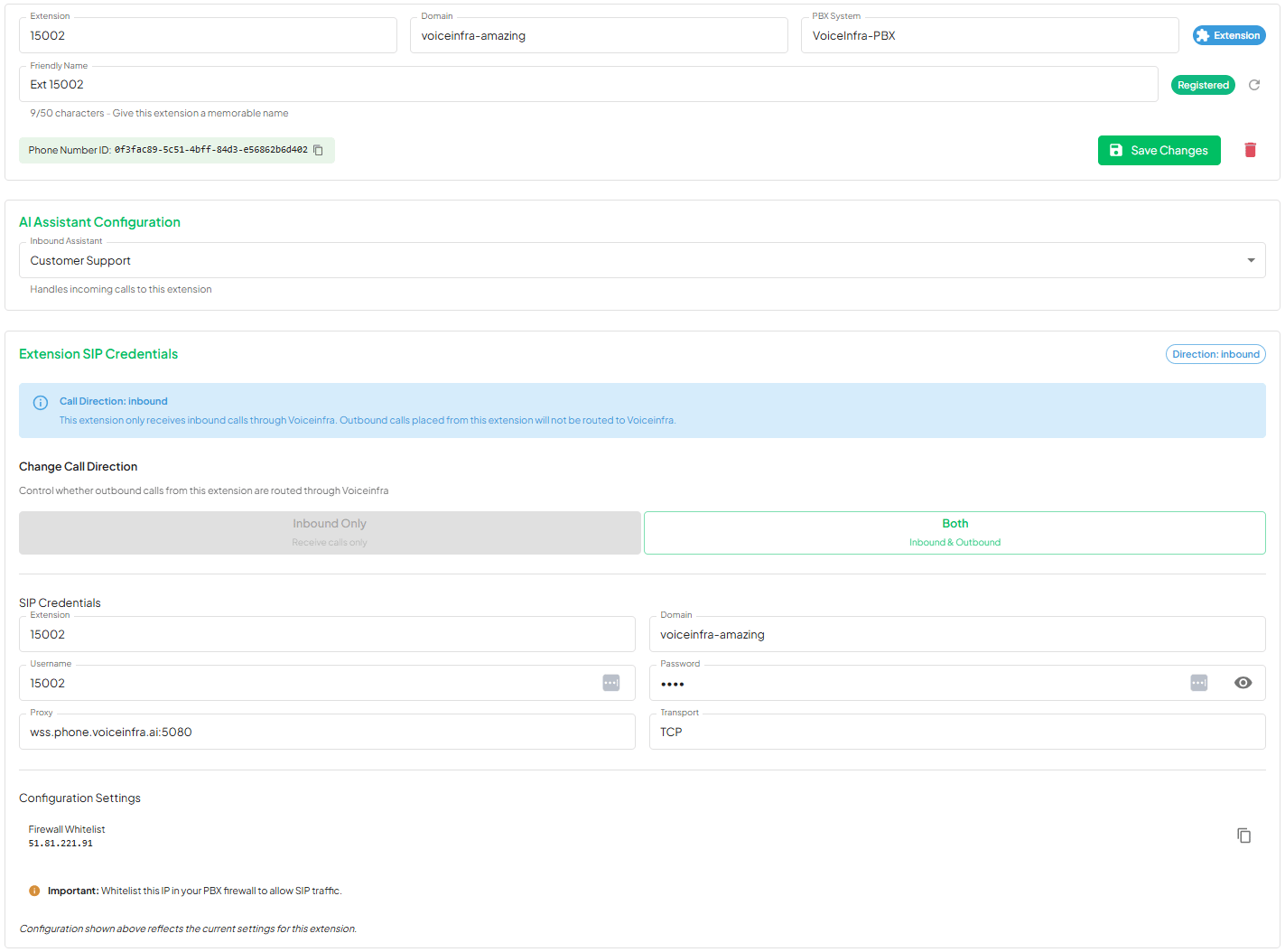
Call Directions
Choose how each extension handles calls when you set it up.
You can change the call direction at any time from the extension settings page. Changes apply immediately without re-registering.
Configuration Reference
Frequently Asked Questions
Will registering an AI extension disrupt my existing phone system?
Will registering an AI extension disrupt my existing phone system?
No. Adding a SIP extension to a PBX is a non-destructive operation. Your existing extensions, call routing, and ring groups are completely unaffected. There is zero downtime.
How many extensions can I register?
How many extensions can I register?
Unlimited. You can register as many extensions as your PBX supports — one per AI agent, multiple agents per PBX, or agents across multiple PBX systems.
Can one extension support both inbound and outbound calls?
Can one extension support both inbound and outbound calls?
Yes. Set the call direction to Both when configuring the extension. The same AI agent will answer incoming calls and place outgoing calls using that extension number.
Are SIP credentials stored securely?
Are SIP credentials stored securely?
Yes. VoiceInfra encrypts all SIP credentials at rest. Credentials are never exposed in logs, API responses, or the dashboard UI after you save them.
What if SIP registration fails?
What if SIP registration fails?
Check three things: (1) confirm the IP shown in Phone Numbers → your number → Connection details is whitelisted in your PBX firewall, (2) verify your PBX domain, SIP username, and password are correct, and (3) ensure the transport protocol (TCP/UDP/TLS) matches your PBX configuration. Reach out to VoiceInfra AI support via email or via the portal.